How do I set up my eero Telephone Adapter?
The eero telephone adapter is an optional accessory provided by your ISP designed to support direct landline telephone service for eero customers. Setup is intended to be fast and seamless.
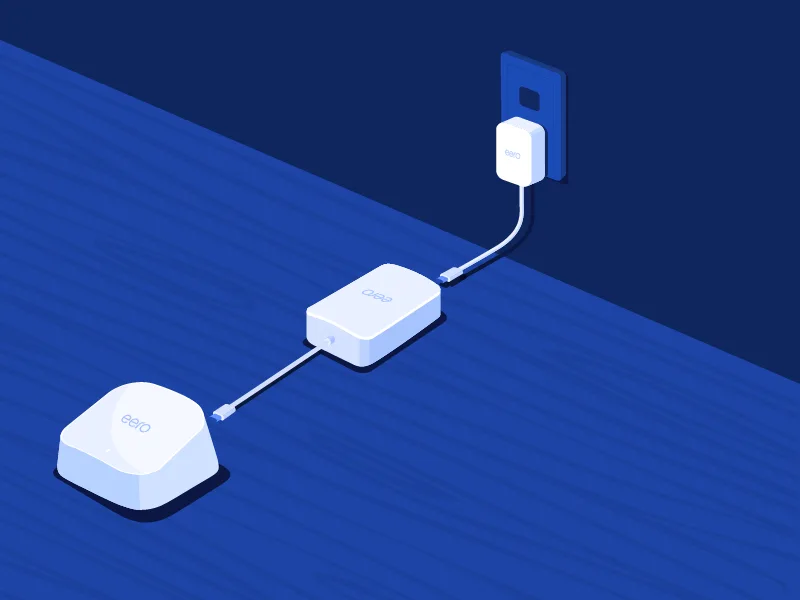
The adapter is a small device designed to connect between an eero and its power supply by utilizing the USB-C port. It can be connected to any compatible eero on a network, providing flexibility by allowing users to select a location that best suits their needs.
How do I connect the eero Telephone Adapter on my network?
Identify the eero nearby the landline device you wish to connect
Connect the adapter to the USB-C port on the back or underside of your eero. Connect the eero’s power adapter to the open USB-C port on the adapter.
The eero will reboot after being plugged into the Telephone adapter and PSU. The eero will be completely reconnected when the LED changes from blinking white to solid white.
This can take up to 90 seconds
Note: eero Telephone Adapter requires eero OS version 7.15.0 to complete setup. If the required version is not detected during setup, your network will be updated automatically during the installation process.
How do I configure my landline phone with eero Telephone Adapter?
Once the adapter is connected to an eero on your network, you will need to connect your landline phone to the adapter for service.
Connect your landline phone to RJ11 port 1. If you have multiple lines provided, also use port 2. The cable should audibly “click” into place when properly connected.
Each port can support a separate phone line, allowing for two simultaneous calls when connected to a single adapter.
Remove the handset of the landline phone from its hook and listen for a dial tone.
An audible dial tone is an indication of a successful connection.
You can confirm that the adapter is active and properly installed on your network using the eero app. When the adapter is connected to an eero, a icon will appear next to the eero.
Why isn’t my eero Telephone Adapter working properly?
Although the eero Telephone Adapter is designed to be simple to install and operate, if you experience issues during set up, try these steps below:
Step 1: Update your eero app and firmware
The eero Telephone Adapter has the best compatibility with the newest eero firmware and app version. If you are encountering any issues, be sure that your eero app and OS version are up to date.
Step 2: Verify that the adapter is visible in the app
When properly configured, the adapter should show up in your app as a icon displayed next to the eero that it is connected to.
Step 3: Check your eero is supported
eero Telephone Adapter is designed to work specifically with eeros that utilize a USB-C power supply.
eero Telephone Adapter supports the following eero models:
eero 6 (router)
eero Pro 6
eero 6+
eero Pro 6E
eero PoE 6*
eero 7
eero Pro 7
eero Max 7
eero PoE 7*
*Only supported when powered by USB-C
Solution: Add an eero to your network that utilizes a USB-C power supply.
Step 4: Check the PSU
The eero Telephone Adapter has power requirements that vary depending on the eero that it is connected to. You can refer to the chart below for a detailed breakdown of the requirements for each type of compatible eero:
With eero Telephone Adapter
eero model | PSU required |
|---|---|
eero Max 7 | 45W PSU |
eero Pro 7 | 27W PSU |
eero Pro 6E | 27W PSU |
eero Pro 6 | 27W PSU |
eero 7 | 27W PSU |
eero 6+ | 27W PSU |
eero 6 | 27W PSU |
eero PoE 6* | 27W PSU |
eero PoE 7* | 45W PSU |
eero PoE Gateway | 140W PSU |
With both eero Telephone Adapter and eero Signal
eero model | PSU required |
|---|---|
eero Max 7 | 45W PSU |
eero Pro 7 | 45W PSU |
eero Pro 6E | 45W PSU |
eero Pro 6 | 45W PSU |
eero 7 | 27W PSU |
eero 6+ | 27W PSU |
eero 6 | 27W PSU |
eero PoE 6* | 27W PSU |
eero PoE 7* | 45W PSU |
eero PoE Gateway | Not supported |
*Only supported when powered by USB-C
Step 5: Contact Support
If you are still experiencing issues with your eero Telephone Adapter after reviewing the above steps, please contact Support for further assistance.
