How do I use eero Simple Setup?
eero Simple Setup automatically adds eeros to your network when you connect them through Ethernet—no app setup required. This saves time when expanding your network and lets you connect multiple wired eeros at once.
What is Simple Setup?
eero Simple Setup automatically adds eeros to your network when you hardwire them through Ethernet. Previously, you needed to use the app to add every eero, even when connecting directly to your gateway eero through Ethernet.
This saves time when expanding your network by automating the connection and configuration process, letting you quickly connect multiple wired eeros at once.
Note: Enabling this feature can have security implications on your network, as any eero that is physically wired to your existing eero network will join your network automatically and receive your network's configuration. When this feature is enabled, ensure you are only providing physical access to your network to people that you know and trust.
What do I need to use Simple Setup?
To use Simple Setup, your network and hardware must meet these requirements:
Eligible eero hardware:
eero 6+
eero 6 (router)
eero 6 PoE
eero Pro 6E
eero 7
eero Pro 7
eero Max 7
eero Outdoor 7
eero PoE 7
A minimum eero App version:
iOS: version 6.46 or later
Android: version 6.49 or later
The new eero must not be associated with another network
Your network type supports the eligible hardware:
eero Business:
eero 6+, eero 6 (router), eero 6 PoE, eero Pro 6E, eero Max 7, eero Outdoor 7, eero 7, eero Pro 7, and eero PoE 7
Note: The new eero must be hardwired into the port associated with the 'Main' network. Ports associated with 'Business' will not support this feature.
eero Communities:
eero 6+, eero 6 (router), eero 6 PoE, eero Pro 6E, eero Max 7, eero Outdoor 7, eero 7, eero Pro 7, and eero PoE 7
Your network must have the eero Simple Setup toggle enabled in the eero App
The new eero must be hardwired to the existing network through Ethernet
How do I enable Simple Setup?
Simple Setup reduces the time spent setting up your eeros.
When hardwiring an eero to your network, if you haven't enabled Simple Setup previously, your eero App will display a message asking if you'd like to enable Simple Setup for this or future devices:
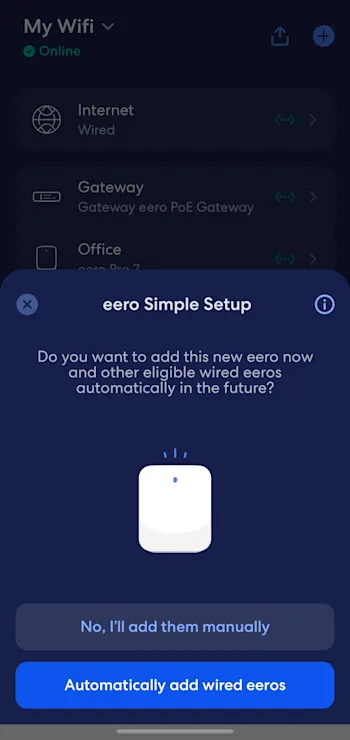
Once you've enabled the feature, if you add more eeros to your network in the future, you'll receive a notification when an eero has been automatically added to the network.
If you'd like to change this setting in the future, follow these steps:
Open the eero App, and tap Settings in the bottom-right corner
Tap Advanced networking
Tap eero Simple Setup
Tap the toggle button on or off
Frequently asked questions
